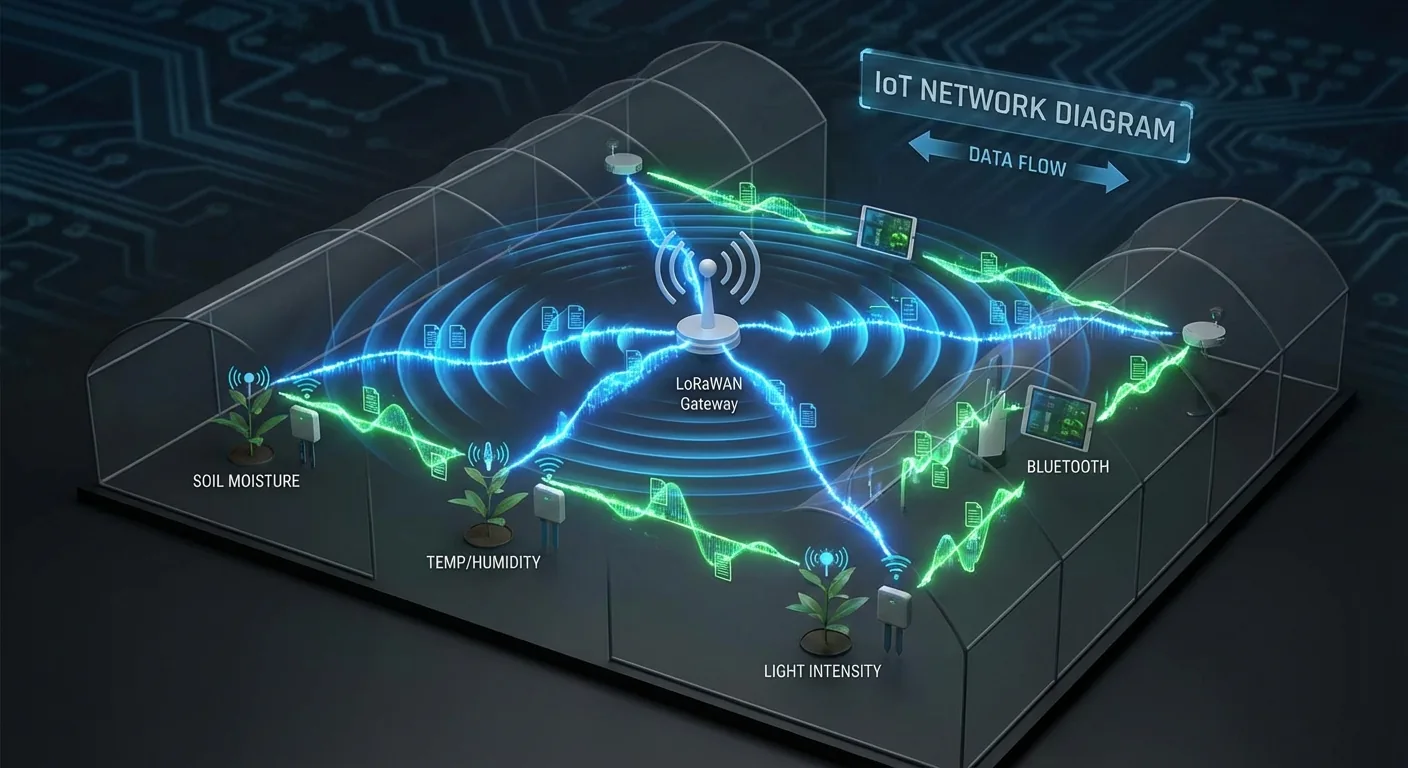
Sensor Communication Guide
Learn how to sync data and configure communication modes for your Growbud sensors.
Quick Summary
Sync your data with the mobile app using the SYNC DATA button if you don't have a gateway. This will cause the app to retrieve all the data from a single sensor using a Bluetooth connection, and then save the sensor data to your account.
If you have a gateway your data syncs automatically so you never need to use the SYNC DATA button. Previously purchased sensors in Bluetooth mode can switch to LoRa mode using the instructions below.
Bluetooth
Growbud sensors use Bluetooth for setup, spot check, and to sync data if the sensor is not in range of a LoRa gateway. Use the SYNC DATA button in the Growbud app to retrieve all historical data from your sensor.
Growbud sensors ship from the factory in Bluetooth mode with LoRa communication DISABLED. This means you need to use the Bluetooth SYNC to view the historical data, or to turn on a LoRa mode if in range of a LoRaWAN network.

My Growbud Sensor
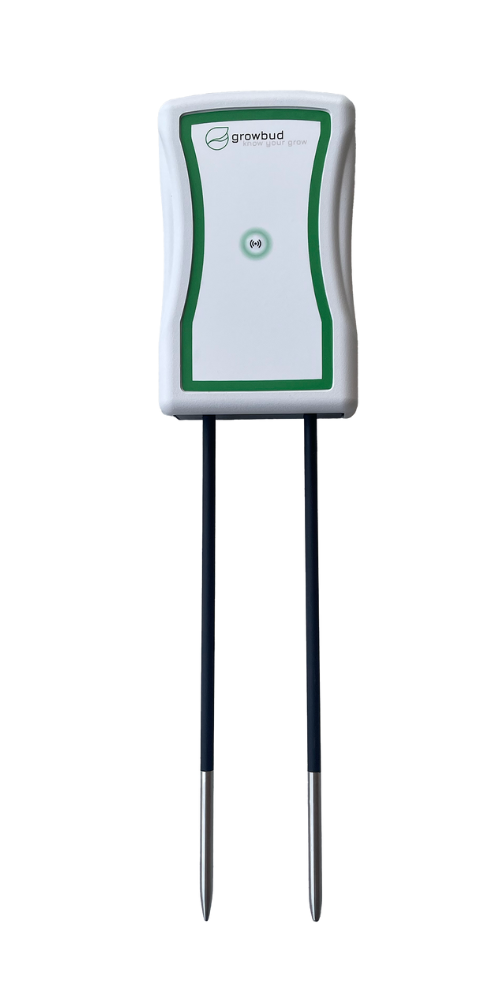
Model: Dro Sensor
SN: E10040BE
Firmware: v3.5.0
Last sync: 15 minutes ago
Network: GROWBUD
Battery:
Bluetooth Controls
Spot Check
View live data
Bluetooth Sync
Sync data if LoRa is disabled
Grow Medium
Select a grow medium
Device Alerts
Turn alerts on or off
SYNC DATA
Bluetooth
Data
Try the bluetooth sync screen
Experience the sync process with our interactive simulator. Click the sync buttons to see how the real app works.
Nearby Sensors
Scanning...
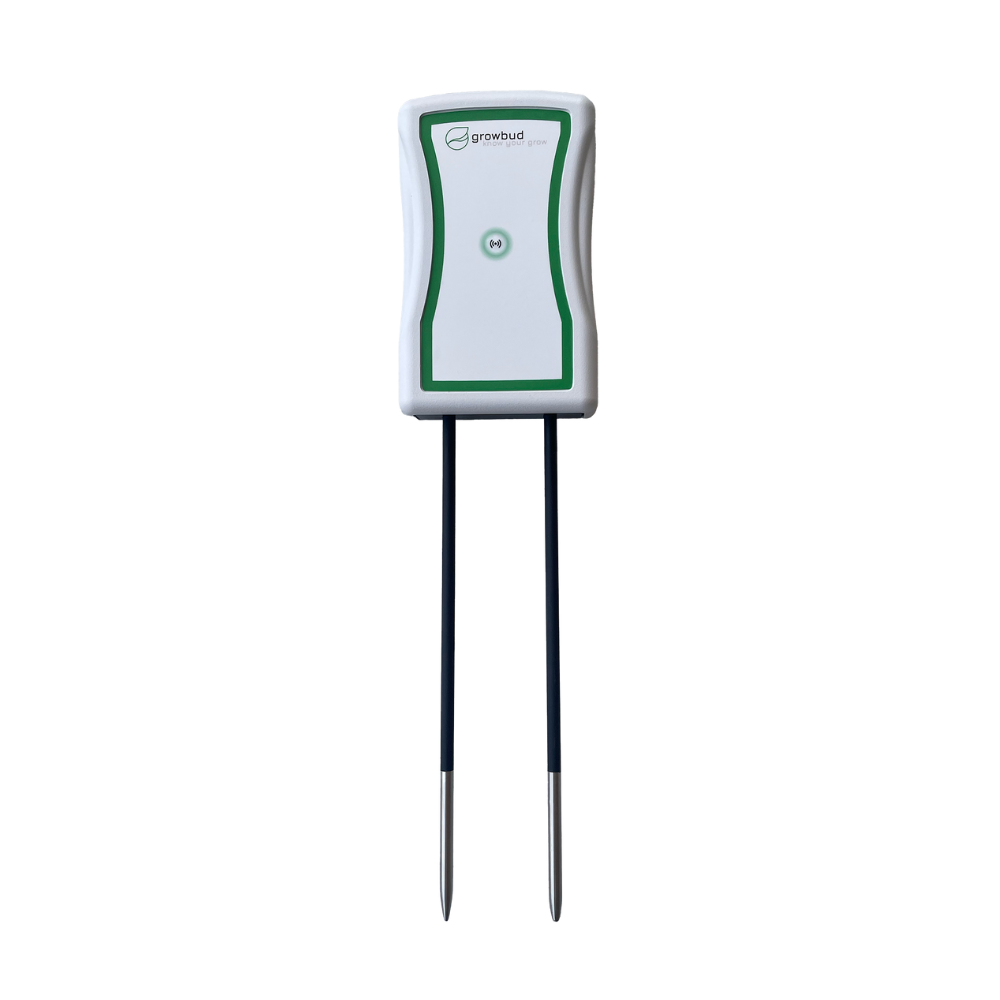
Dro Sensor
SN E2001000
Needs sync • 2.1 days
BLE MODE
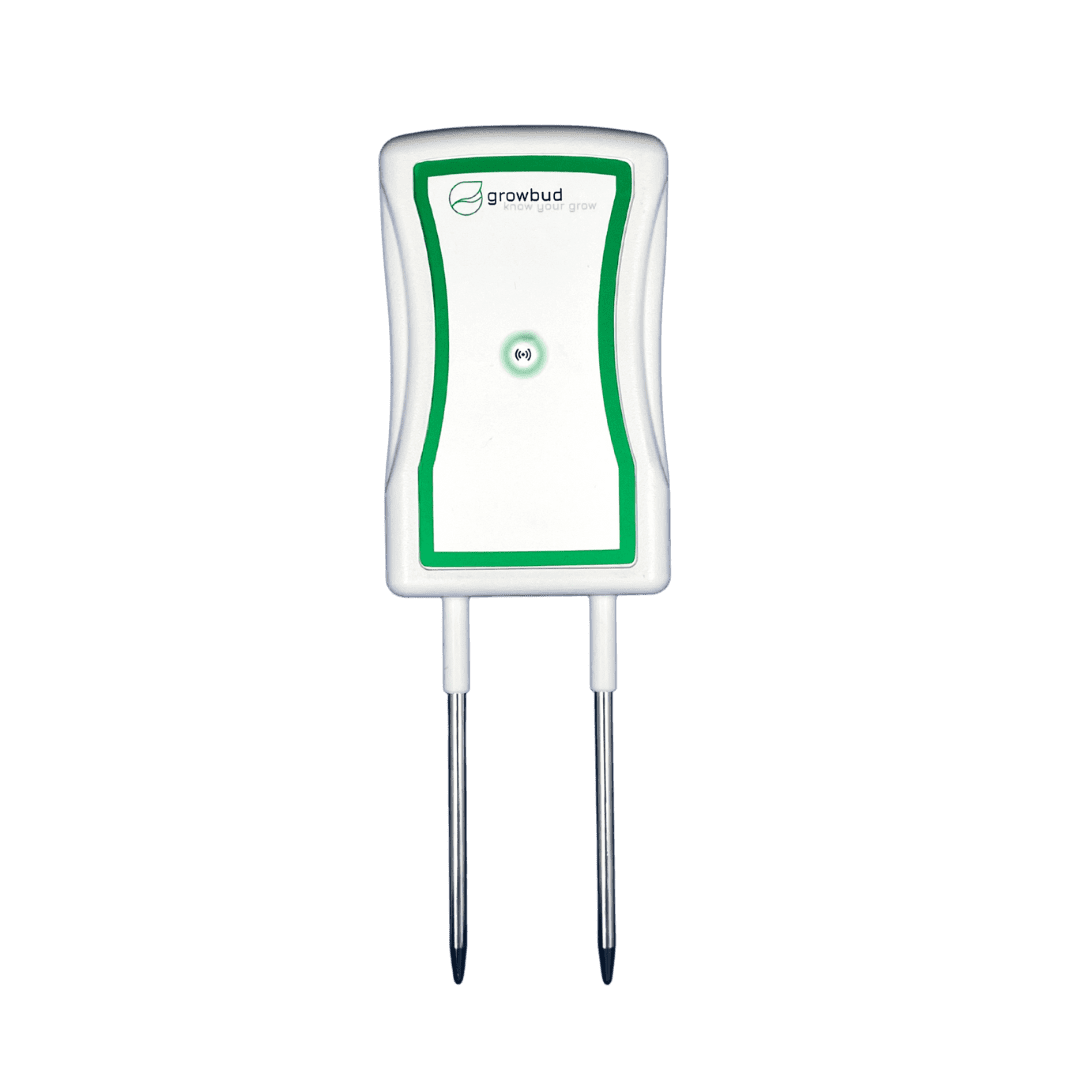
Vero Sensor
SN E3001000
Needs sync • 8.5 hours
BLE MODE
Unpaired Sensors
LoRaWAN Long-Range
Why Choose LoRaWAN?
Long Range
Auto Sync
Low Power
Network Options
There are 3 options in the Growbud app for using LoRaWAN connectivity:
Private Gateway
Use a dedicated Growbud LoRa gateway for complete control. Best for commercial installations.
Bluetooth Only
Disable LoRaWAN to conserve battery and use Bluetooth for manual syncing.
Helium Network
Connect to the public Helium network for automatic data transmission.
Getting Started with LoRaWAN
For Private Gateway:
- Purchase and install Growbud gateway
- Set sensor LoRaWAN mode to "Private"
- Configure gateway settings
- Enjoy automatic data sync
For Helium Network:
- Check Helium coverage in your area
- Set sensor LoRaWAN mode to "Helium"
- Wait for automatic connection
- Monitor data in the app
Communication Methods Comparison
Choose the best option for your specific needs and environment
Bluetooth Only
Setup, testing, close-range monitoring
LoRaWAN Private
Commercial, remote areas, full control
LoRaWAN Helium
Urban areas, existing Helium coverage
| Feature | Bluetooth Only | LoRaWAN Private | HLoRaWAN Helium |
|---|---|---|---|
| Range | Up to 300 feet | Up to 2 miles | Up to 2 miles |
| Automatic Sync | Manual only | Automatic | Automatic |
| Battery Usage | Very Low | Very Low | Very Low |
| Setup Required | None | Purchase gateway | Check coverage |
| Cost | Free | Gateway cost | Free |
| Best For | Setup, testing, close-range monitoring | Commercial, remote areas, full control | Urban areas, existing Helium coverage |
Ready to get started with Growbud sensors?
Shop our sensors and gateways or schedule a demo to see how Growbud can help your grow operation.
Keep reading
Related guides
Controller Communication Guide
Every way the Controller connects: LoRaWAN, Bluetooth, Modbus RTU, native BACnet, and CANopen.
Read the guideSensor Selection Guide
Pick the right Growbud sensor for your setup, by container size, grow medium, and irrigation type.
Read the guideGrowbud API Guide
Integrate Growbud data into your own tools with the REST API: authentication, endpoints, and interactive docs.
Read the guide